With limits of 50GB in Exchange Online P1 and 100GB in Exchange Online P2, there comes a time for some users where that is not enough.
Currently Microsoft does not support mailboxes over 100GB in size, so if large emails and general mailbox tidying do not resolve the issue, the next best step is to create an online archive for the User
Exchange Online P1 supports up to 50GB archives. Exchange Online P2 supports “100GB” space for the archive
To setup the following is needed
- Set up the retention tags needed
First agree a suitable auto archive time with the user, for example auto archive anything older than 5 years old. Then go to Microsoft Purview to create the tag required
https://purview.microsoft.com/datalifecyclemanagement/exchange/retentiontags
Click “New tag”. First give it a name for example 5 year archive.
Click next and choose the top option “Automatically to entire mailbox”. Click Next.
Set the age in days so for example 5 years would be 1825. For the retention action choose “Move item to archive”
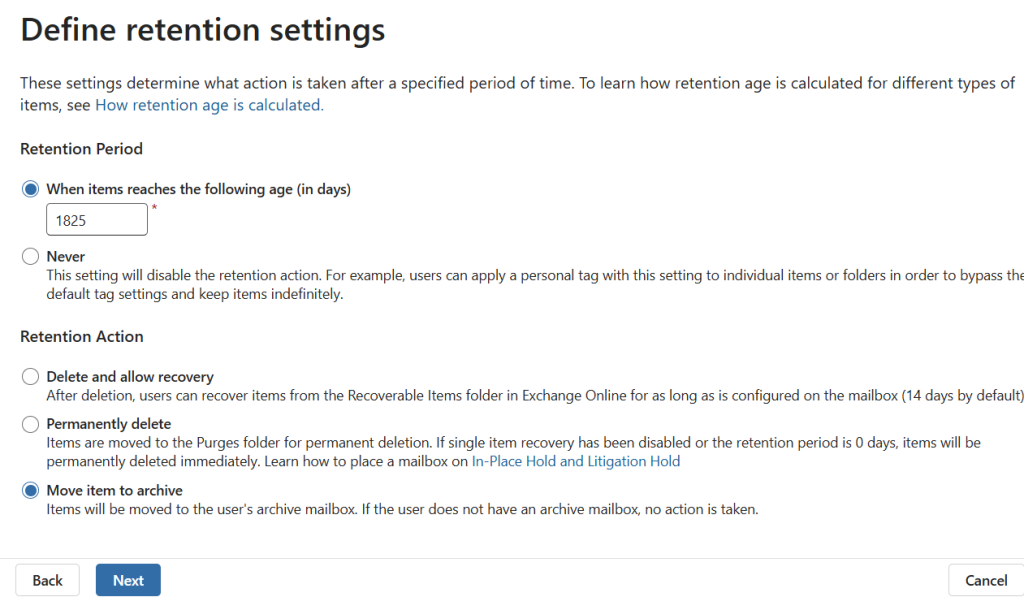
Click next, confirm the details and submit
- Setup the retention policy
First go to
https://purview.microsoft.com/datalifecyclemanagement/exchange/retentionpolicies
Click on “New Policy”
Enter a name such as 5 Year Archive
Click Add tag and select the policy tag you have just created, as well as any other policy tags you would like to add
Click next to review and click submit to save the new policy
- Assign the policy to the user
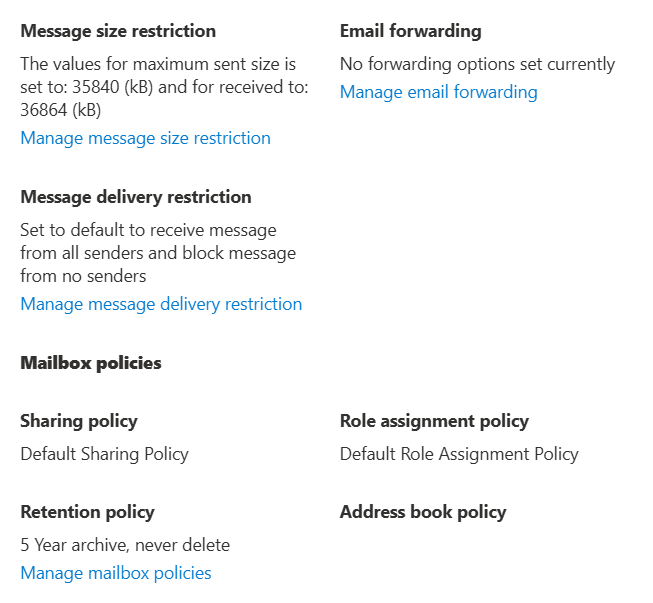
In Exchange Online (https://admin.exchange.microsoft.com/) go to the users mailbox. Choose the “Mailbox” tab, scroll to the bottom and choose “Manage Mailbox Policies” under “Retention Policy”
Under Retention Policy select the new policy created and click save
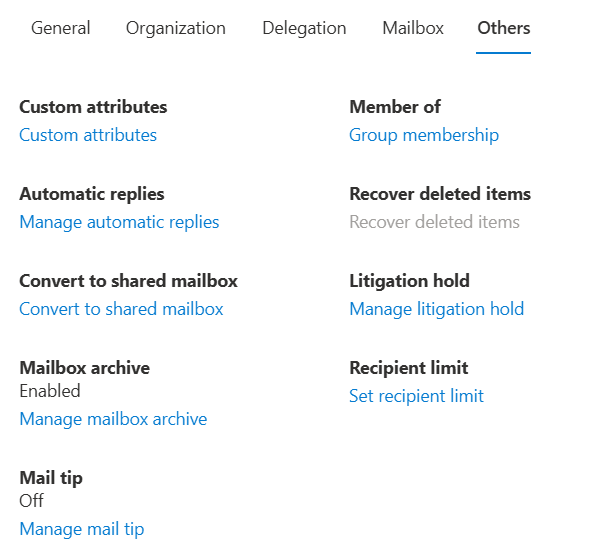
Next Choose the tab “Others” at the top and click “Manage Mailbox Archive” under Mailbox Archive.
Enable the archive. the name is optional but useful to set. Click save
In the Windows client the mailbox policy will be added automatically.
- (Optional) manually start the Mailbox Folder Assistant
The archive process can take up to 24 hours to start. This can be forced by using the Start-ManagedFolderAssistant command for the mailbox in Powershell. To do this runthe following commands
First run – Connect-ExchangeOnline
Get the Primary Mailbox GUID – get-mailboxLocation –user user@domain.com | fl mailboxGuid,mailboxLocationType
Copy the Primary MailboxGUID
Then run – Start-ManagedFolderAssistant [Primary GUID]


